Resolve Chat User IDs to Emails: Least Privilege
If you’ve built a Google Chat bot, you’ve likely hit this wall: the API sends you a membership event with a User ID (e.g., users/1154...), but omits the email field entirely. Unfortunately, your business logic usually needs that email address.
You try the People API, but it returns empty fields because your Service Account doesn’t have a contact list. You might try the Admin SDK, but default Service Account calls will return 403 Forbidden because they lack the admin privileges of a user. You look at Domain-Wide Delegation (DwD), but giving a bot permission to impersonate any user feels like using a sledgehammer to crack a nut.
There is a better way. By combining directly assigning a custom role to a Service Account, we can resolve emails securely without granting blanket domain access.
The Strategy
Instead of using Domain-Wide Delegation to let the Service Account impersonate an Admin, we make the Service Account an Admin itself—but strictly a read-only one with a custom role.
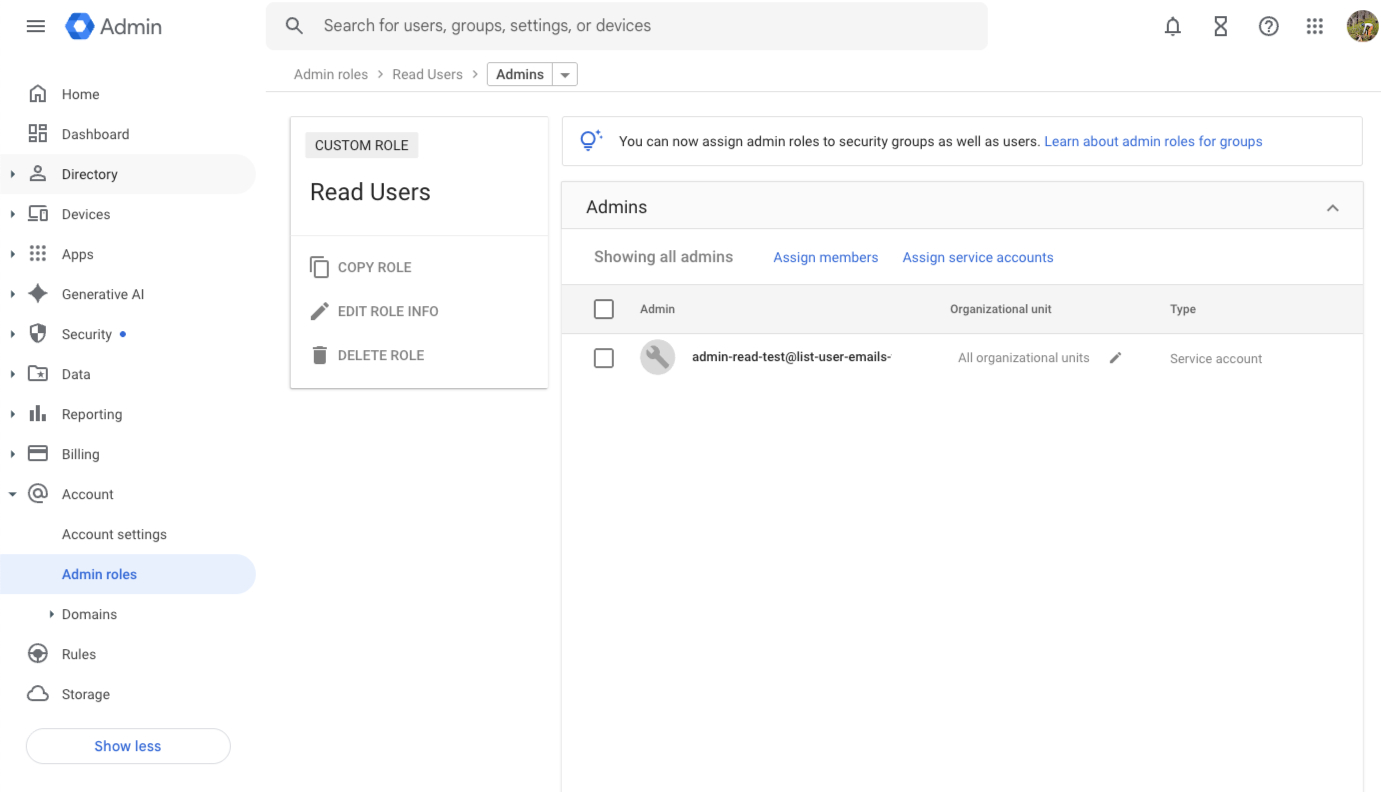
Read Users Custom Role Assigned to Service Account
1. Create a Custom Role
In the Google Admin Console, create a role with a single permission: Admin API Privileges > Users > Read. Learn more about custom roles.
2. Assign the Role
Assign this custom role directly to your Service Account’s email address.
3. Local Development
Use IAM Service Account Impersonation (acting as the service account) to run your scripts locally, rather than Domain-Wide Delegation (the service account acting as a user), keeping your local environment key-free.
The Solution
In a production environment on Google Cloud, your code likely uses Application Default Credentials (ADC) to authenticate as the Service Account. Since the Service Account itself holds the Admin privileges, no special “impersonation” logic is needed in your code—it just works.
However, for local testing, we don’t want to download long-lived JSON keys. Instead, we use Service Account Impersonation to temporarily act as the bot.
Here is a bash script that demonstrates the local testing flow. It uses gcloud to generate a token for the Service Account (using your own credentials to authorize the impersonation) and then queries the Admin SDK Directory API.
#!/bin/bash

# --- Prerequisites ---
# 1. Google Cloud: Grant your user 'Service Account Token Creator'
#    on the Service Account.
# 2. Workspace: Create a Custom Admin Role with
#    'Admin API Privileges > Users > Read'
#    and assign it directly to the Service Account email.

# --- Configuration ---
# Replace with the ID from Chat API
TARGET_USER_ID="115429828439139643037"
SERVICE_ACCOUNT="[email protected]"

echo "Generating impersonated access token for $SERVICE_ACCOUNT..."

# 1. Generate an access token for the Service Account.
# We request the directory.user.readonly scope. Since the SA has this role
# directly assigned in Workspace, it doesn't need to impersonate
# a human admin.
#
# Note: You may see a gcloud warning:
# "WARNING: --scopes flag may not work as expected..."
# You can safely ignore this. The scope IS required and correctly applied.
ACCESS_TOKEN=$(gcloud auth print-access-token
    --impersonate-service-account="$SERVICE_ACCOUNT"
    --scopes="https://www.googleapis.com/auth/admin.directory.user.readonly")

if [ -z "$ACCESS_TOKEN" ]; then
    echo "Error: Failed to generate impersonated token."
    exit 1
fi

# 2. Query Admin SDK
echo "Querying Admin SDK for User ID: $TARGET_USER_ID..."

RESPONSE=$(curl -fs -X GET
    -H "Authorization: Bearer $ACCESS_TOKEN"
    -H "Content-Type: application/json"
    "https://admin.googleapis.com/admin/directory/v1/users/${TARGET_USER_ID}?projection=basic")

# 3. Parse the output
EMAIL=$(jq -r '.primaryEmail' <<< "$RESPONSE")

if [ "$EMAIL" != "null" ] && [ -n "$EMAIL" ]; then
    echo "------------------------------------"
    echo "Success! Resolved to: $EMAIL"
    echo "------------------------------------"
else
    echo "Error: Could not resolve email. API Response:"
    jq . <<< "$RESPONSE"
fi
Running the Script
When you run this script, you’ll see the impersonation in action. gcloud handles the credential exchange, and the Admin SDK accepts the token because the Service Account itself holds the permissions.
./emails.sh
Generating impersonated access token for [email protected]...
WARNING: This command is using service account impersonation. All API calls will be executed as [[email protected]].
WARNING: `--scopes` flag may not work as expected and will be ignored for account type impersonated_account.
Verifying access token...
{
  "issued_to": "108111659397065155772",
  "audience": "108111659397065155772",
  "user_id": "108111659397065155772",
  "scope": "https://www.googleapis.com/auth/userinfo.email openid https://www.googleapis.com/auth/admin.directory.user.readonly",
  "expires_in": 3599,
  "email": "[email protected]",
  "verified_email": true,
  "access_type": "online"
}
Querying Admin SDK...
------------------------------------
Success! Resolved to: [email protected]
------------------------------------
The warning WARNING: --scopes flag may not work as expected is a known quirk in the gcloud CLI when using impersonation. As you can see in the output, the scope is present and the API call succeeds.
Beyond Email Resolution: Because the Service Account acts as itself, it is not restricted to just resolving IDs. With the Users > Read permission, it can also use the Admin SDK to Search Users or list organizational units, all without being a Super Admin or Domain-Wide Delegation.
Why this is better
- No Keys: You aren’t downloading long-lived JSON key files to your laptop.
- Audit Trails: The Admin Audit log will show the Service Account performing the read, rather than an impersonated Super Admin.
- Least Privilege: The bot can only read users. It can’t delete accounts, reset passwords, or read Gmail, which are risks often associated with broad Domain-Wide Delegation scopes.
This approach keeps your security team happy and your bots functional.
Opinions are my own and not the views of my employer.
© 2025 by Justin Poehnelt is licensed under CC BY-SA 4.0